A Chrome extension by Charlie
shuttertabs.
Save and restore Chrome tabs and tab groups.
A little room for what’s next.
Too many tabs open, but you’ll need them later? shuttertabs saves your Chrome window as a snapshot, lets you clear tabs after a review, and brings them back in a new window when you’re ready.
Get shuttertabs for ChromeAvailable on the Chrome Web Store · For desktop Chrome · In English
Save it. Clear it. Come back to it.
- Review your window. Choose Snap & Clear to see what will close. Pinned tabs, tabs playing audio, and the tab you’re using stay open by default.
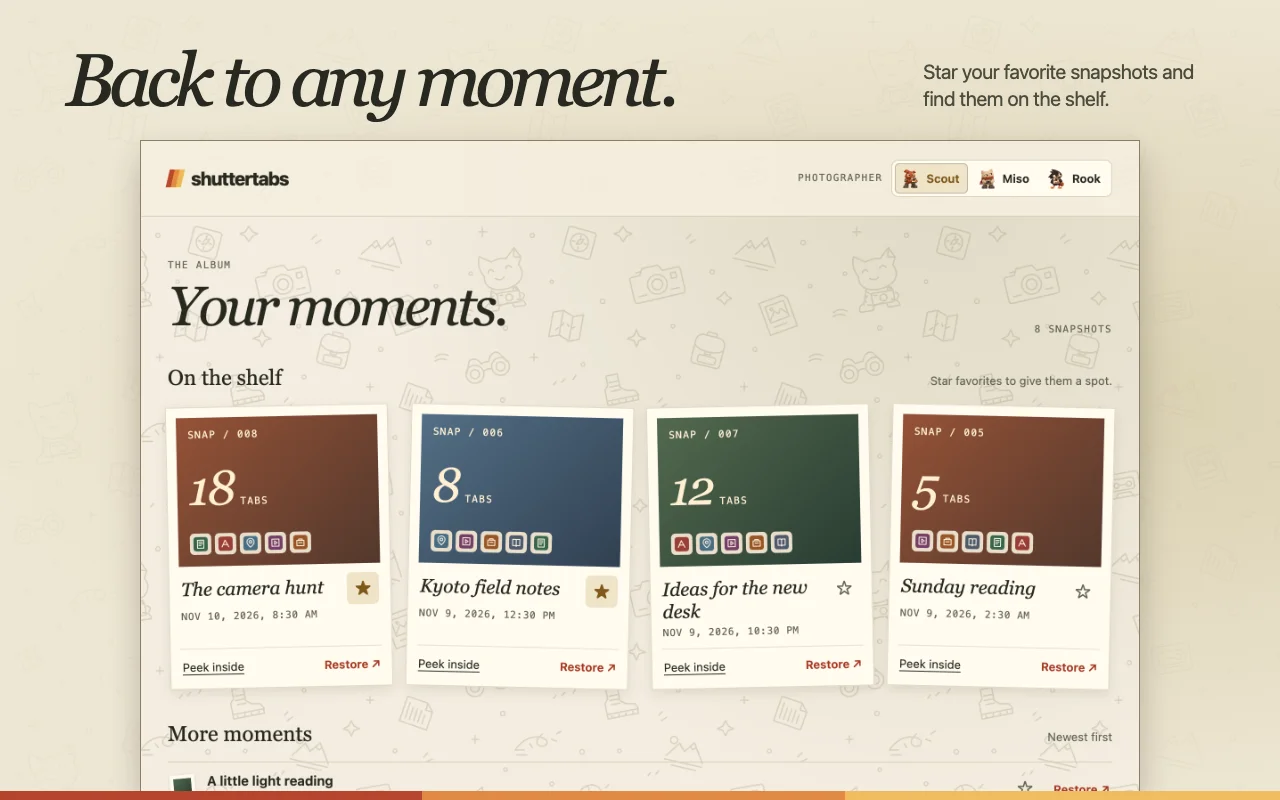
- Keep a moment. Confirm Save & Clear. shuttertabs verifies the local save before closing approved tabs. Name your snapshots, star your favorites, and peek at their links in Your moments.
- Pick up where you left off. Restore opens the saved links in a separate window, preserving tab order, pinning, and groups. The snapshot stays in your album.
Snapshots save links and browser tab details. They don’t recover unsaved forms or edits. Private windows are excluded.
A photographer for your tabs.
Choose Scout, Miso, or Rook. Each brings their own album wallpaper, colors, and shutter animation. A small bit of personality for a fresh start.
Your moments stay with you.
shuttertabs asks before it reads your open tabs. When you save a window, its links and tab groups stay in your browser profile. No account or cloud sync is required.
The extension has no advertising or analytics, and it does not send your snapshots to the developer.
Your first fresh start.
Open the Chrome Web Store listing in desktop Chrome and choose Add to Chrome. Pin shuttertabs from Chrome’s extensions menu so it’s easy to reach.
Open shuttertabs in a regular browser window. Choose Allow tab access, then Snap & Clear to review your tabs. Nothing closes until you confirm Save & Clear. Find your snapshot in Your moments whenever you’re ready to restore it.
A few things to know.
How do I save Chrome tabs for later?
Open shuttertabs in the window you want to save and choose Snap & Clear. Review which tabs will close, then confirm Save & Clear. Your window is saved as a snapshot in Your moments. When you want to return, choose Restore to reopen its saved links in a new window.
Can I restore saved tab groups?
Yes. When you restore a snapshot, shuttertabs recreates its saved tab groups in a new window and preserves tab order and pinning. The snapshot stays in your album so you can use it again. It saves links and tab details, not unfinished forms or edits.
Do my snapshots sync across devices?
No. Snapshots stay in the browser profile where you saved them. There’s no account or cloud sync. Uninstalling shuttertabs removes its saved snapshots and preferences from that profile.
Why does the store mention “Web history”?
The store disclosure covers the URLs and titles of open tabs that shuttertabs reads and saves for your snapshots. It does not scan your browsing history. Those snapshots stay in your browser; they aren’t sent to the developer.
Will it save unfinished work?
It saves links and tab details, not the contents of a page. Save any unfinished forms, documents, or edits before clearing tabs.
Need help or want to leave feedback?
Use the developer contact on the Chrome Web Store listing. If shuttertabs has made room in your day, you can leave a review there too.